Frequency Separation in Photoshop: A Complete Guide
Frequency separation revolutionized portrait retouching. It lets you fix skin texture without affecting color, and smooth color without destroying texture. Once you understand it, you'll wonder how you ever worked without it.
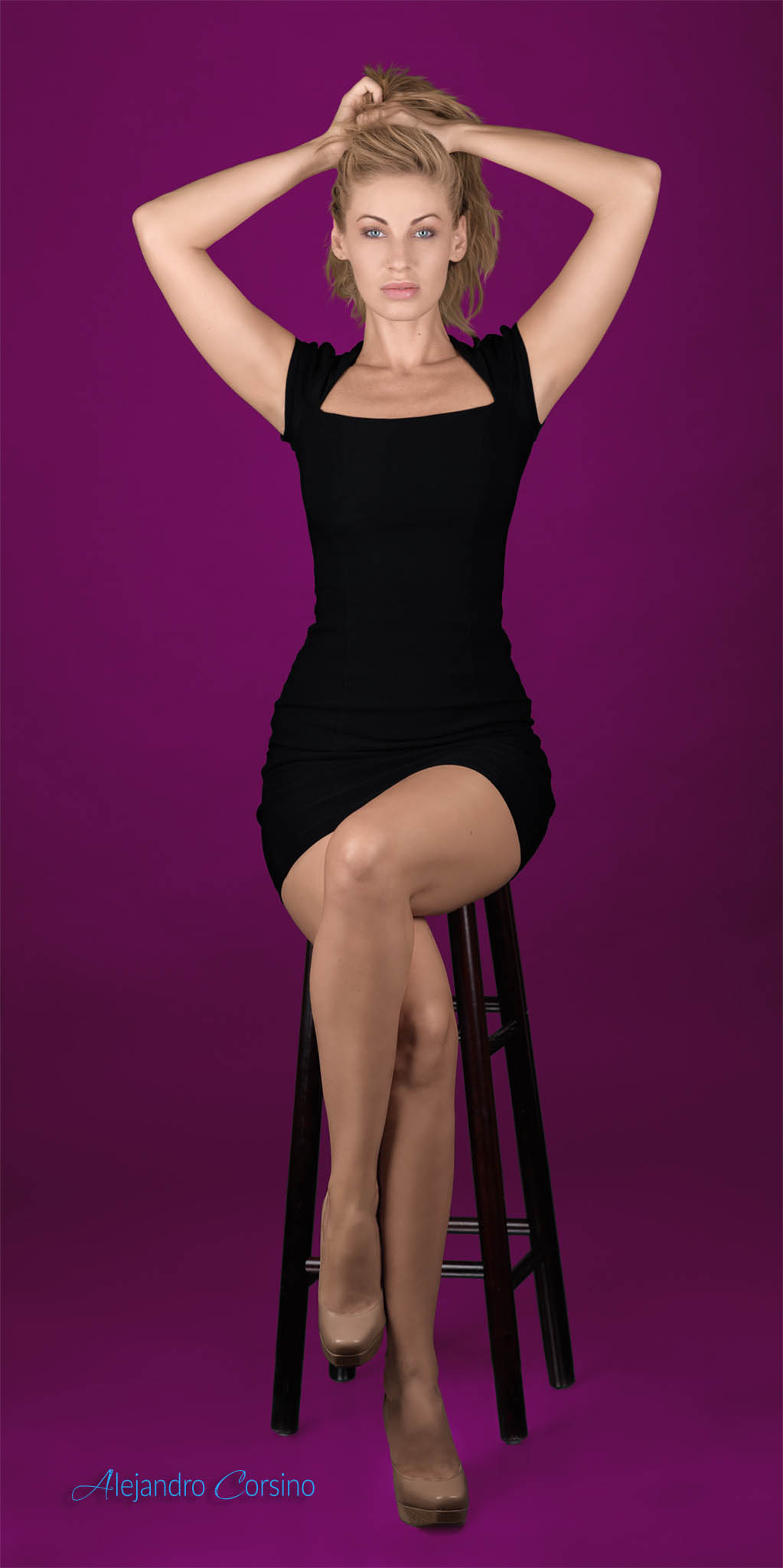
This technique was essential for retouching portraits like the one above.
What Is Frequency Separation?
Every image contains two types of information:
- Low frequency Color, tone, large gradients, shadows
- High frequency Texture, fine details, pores, hair
Frequency separation splits these onto different layers so you can edit them independently.
Setting It Up
Step 1: Duplicate Your Layer Twice
Start with your retouched layer (clone work done). Duplicate it twice:
- Rename the bottom copy "Low Frequency"
- Rename the top copy "High Frequency"
Step 2: Create the Low Frequency Layer
Select the Low Frequency layer and apply Gaussian Blur:
Filter > Blur > Gaussian Blur
The radius depends on your image resolution. You want to blur until texture disappears but shapes remain. For a standard portrait:
- 300 DPI: 8-12 pixels
- 72 DPI web images: 3-5 pixels
Step 3: Create the High Frequency Layer
This is where people often go wrong. Select the High Frequency layer:
-
Go to
Image > Apply Image -
Set these options:
- Layer: Low Frequency
- Blending: Subtract
- Scale: 2
- Offset: 128
-
Set the layer blend mode to Linear Light
If done correctly, your image should look exactly like the original. You've successfully separated the frequencies.
Working on the Low Frequency Layer
The low frequency layer controls color and tone. Use soft brushes here.
Smoothing Skin Tones
Select the Low Frequency layer and use the Mixer Brush:
- Wet: 20-40%
- Load: 20-40%
- Mix: 20-40%
- Flow: 20-40%
Gently paint to blend colors. This smooths blotchy skin without touching texture.
Fixing Color Casts
Use a soft brush with the Brush tool:
- Hold Alt/Option to sample a nearby good color
- Paint over the problem area with low opacity (10-20%)
- Build gradually
This works great for redness, under-eye darkness, and uneven tan lines.
Clone Stamp for Larger Fixes
For bigger issues like harsh shadows or large discolorations:
- Select Clone Stamp
- Set hardness to 0%
- Sample from a clean area
- Paint over the problem
Because you're only affecting color, the texture remains intact.
Working on the High Frequency Layer
The high frequency layer is texture only. Keep it crisp.
Removing Blemishes
Use the Clone Stamp or Healing Brush:
- Select the High Frequency layer
- Set sample to "Current Layer"
- Clone clean texture over blemishes
The key: sample texture from a similar area. Forehead texture looks different from cheek texture.
Reducing (Not Removing) Texture
Sometimes texture is too pronounced. Use the Clone Stamp at lower opacity (30-50%) to blend:
- Sample smooth texture
- Gently paint over harsh areas
- Build gradually
Never completely remove texture. Real skin has texture.
Common Mistakes
Over-smoothing the Low Frequency
The biggest mistake is making skin look plastic. Signs you've gone too far:
- Skin looks waxy
- Natural shadows are gone
- The face looks flat
Fix: Use lower opacity, work in smaller areas, and take breaks to reset your eyes.
Wrong Blur Radius
Too little blur: Texture bleeds into the low frequency layer Too much blur: You lose important tonal information
Test by toggling the High Frequency layer visibility. If you see texture in the Low layer, increase blur. If shapes are lost in the High layer, decrease blur.
Mismatched Texture
When cloning on the High Frequency layer, sample from similar skin areas:
- Forehead to forehead
- Cheek to cheek
- Nose to nose
Different facial areas have different texture patterns.
Advanced: Frequency Separation Actions
Create an action to automate the setup:
- Open Actions panel
- Create new action
- Record the steps above
- Stop recording
Assign a keyboard shortcut for quick access.
When to Use It
Frequency separation excels at:
- Evening out blotchy skin tones
- Reducing redness without losing texture
- Softening harsh shadows
- Fixing makeup mistakes
- Smoothing skin while keeping it real
It's less ideal for:
- Quick edits (setup takes time)
- Heavy reshaping (use liquify instead)
- Removing large objects (use standard cloning)
The Philosophy
Good retouching is invisible retouching. The goal isn't to make someone look like a mannequin. It's to show them at their best while keeping them recognizably themselves.
Frequency separation gives you the control to do that. Use it wisely.