Background Replacement in Photoshop: From Quick Masks to Perfect Edges
Replacing backgrounds used to take hours. Modern tools have made it faster, but the fundamentals still matter. Here's how to get clean results regardless of your subject.
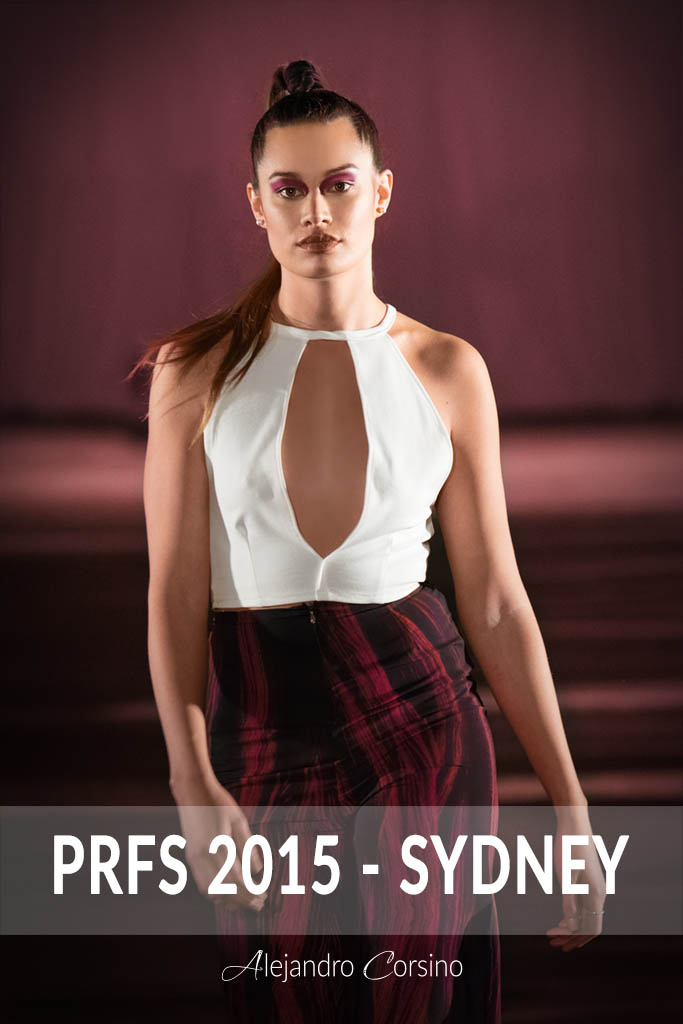
Complex edges like this fashion shot require careful attention to hair and fabric details.
Quick Selection Methods
Select Subject
The fastest option for clean edges:
- Go to
Select > Subject - Photoshop AI analyzes the image and selects your subject
- Refine as needed
Works surprisingly well for most portraits. May struggle with wispy hair, transparent objects, or complex patterns.
Object Selection Tool
For more control:
- Select the Object Selection Tool (W)
- Draw a rectangle around your subject
- Photoshop finds the edges within your selection
Better for subjects that aren't obviously "the subject" of the image.
Quick Selection Tool
For manual brushing:
- Select Quick Selection Tool
- Brush over your subject
- Photoshop expands the selection along detected edges
Good for subjects with clear contrast against backgrounds.
Refining Selections
Select and Mask
After making a rough selection:
- Click "Select and Mask" in the options bar
- Use the views to see your selection clearly
- Refine with these tools:
Refine Edge Brush: Paint over hair and fuzzy edges. Photoshop detects fine details.
Smooth: Reduces jagged edges.
Feather: Softens the selection boundary.
Contrast: Sharpens edges.
Shift Edge: Expands or contracts selection.
Edge Detection
In Select and Mask:
- Check "Smart Radius"
- Set Radius to 3-5 pixels for clean edges
- Increase for complex edges (hair)
The radius tells Photoshop how far to look for edge details.
Decontaminate Colors
Critical for hair and semi-transparent edges:
- Check "Decontaminate Colors"
- Set amount (50-75% usually works)
This replaces edge pixels that contain background color with subject colors. Prevents color fringing on new backgrounds.
Complex Selections
Hair on Busy Backgrounds
The hardest scenario. Multiple techniques help:
Channels Method:
- Open Channels panel
- Find the channel with most contrast between hair and background
- Duplicate it
- Levels adjustment to increase contrast
- Paint to clean up
- Load as selection (Ctrl/Cmd + click)
Color Range:
Select > Color Range- Click on background color
- Adjust fuzziness
- Invert for subject selection
Manual Painting: Sometimes you just have to paint hair back in. Use a small brush, low flow, and build up gradually.
Glass and Transparency
Transparent objects need the background showing through:
- Select the solid parts normally
- Use Blend If sliders to bring back highlights:
- Double-click layer
- Under "Underlying Layer," hold Alt/Option and split the white slider
- Drag to bring back bright areas from below
Motion Blur
Blurred edges are soft, not sharp:
- Feather your selection (5-20 pixels depending on blur)
- Don't try to make sharp edges
- Match the blur in your new background
Placing the New Background
Scale and Perspective
New backgrounds must match:
- Scale: Objects in background should be appropriately sized
- Perspective: Horizon lines should match
- Focus: Background blur should match original depth of field
Lighting Direction
Study the light on your subject:
- Where are the shadows falling?
- What direction is the key light?
- Is the light warm or cool?
Choose or adjust your background to match.
Color Matching
After placing:
- Add a Color Balance adjustment layer
- Clip it to your subject layer
- Adjust to match the new environment
If the background is warm, add warmth to the subject. If cool, add cool tones.
Edge Work
Even good selections need edge work:
- Add a layer mask to your subject
- Paint with soft black brush to soften harsh edges
- Use a small brush to clean up obvious fringing
- Add subtle shadow under the subject (new layer, soft brush, low opacity)
Matching Ambient Light
Adding Reflected Light
Subjects pick up color from their environment:
- New layer, set to Color blend mode
- Sample a color from the new background
- Soft brush at low opacity
- Paint on edges of subject facing the background
Atmospheric Effects
If your background has haze or atmosphere:
- Add an adjustment layer between subject and background
- Reduce contrast slightly
- Add subtle color cast to match atmosphere
- Mask so it only affects edges
Common Mistakes
Sharp Edges on Soft Images
A razor-sharp selection on a soft image looks wrong. Match the edge sharpness to the image sharpness.
Wrong Scale
Putting a portrait in front of mountains that look a mile away, but the person looks 10 feet tall relative to them.
Ignoring Shadows
Subjects need shadows. A floating person with no ground shadow looks fake.
Over-Processing
If you can immediately tell it's composited, you've gone too far. Subtlety is everything.
Practice Exercise
- Take a portrait against a clean background
- Select and mask carefully
- Place on three different backgrounds:
- Studio backdrop (easy)
- Outdoor scene (medium)
- Interior with different lighting (hard)
Notice what makes each work or fail. The lessons you learn will transfer to any compositing work.
Photoshop keeps improving its selection tools, but understanding the principles ensures you can handle any situation, even when the AI fails.